.png)
GirlTREK Underground App: Sync Activity
Sync Activity: How It Works and How to Get Help
Yes, you can absolutely sync your activity in the Underground App—we’ve got you.
Here’s how to do it:
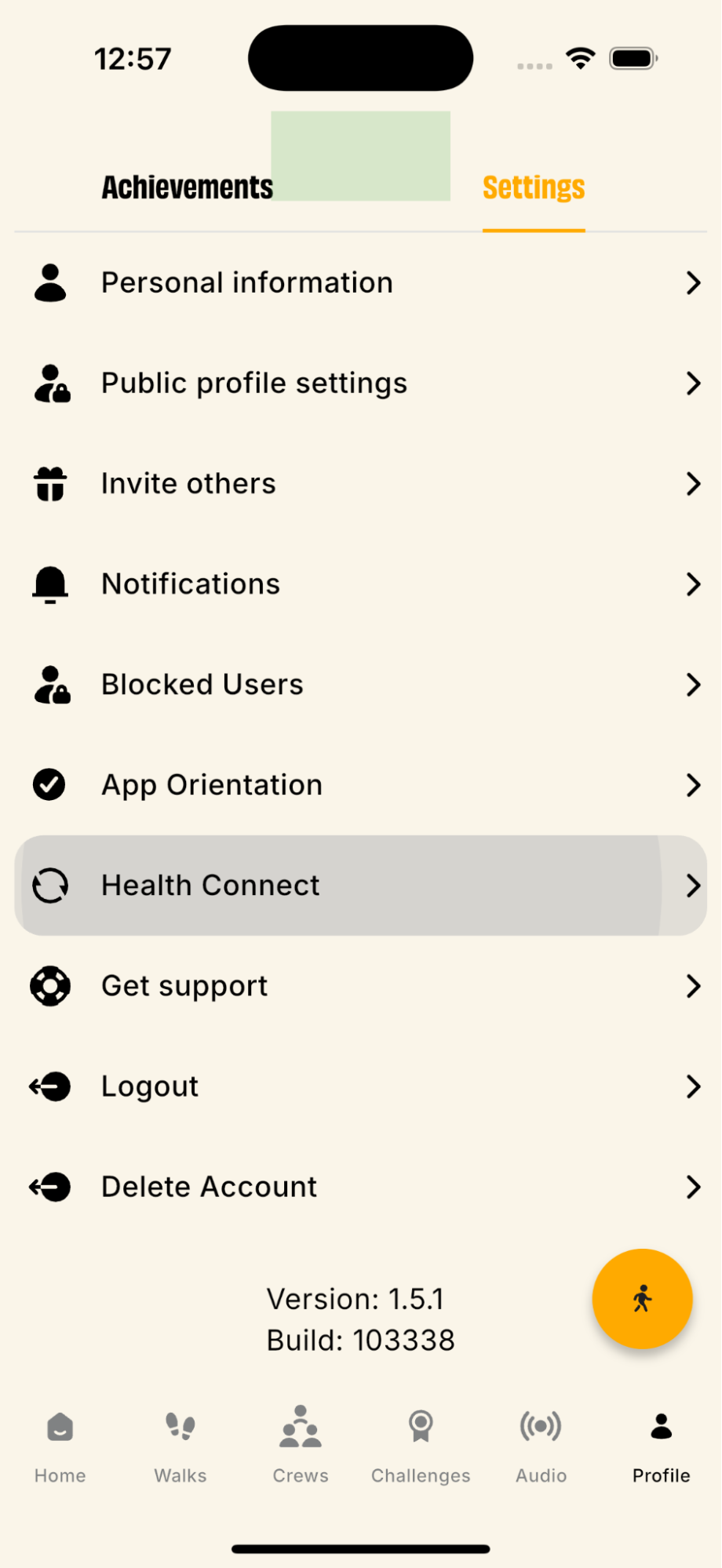
- Open your Profile in the app
- Tap Settings
- Select Health Connect
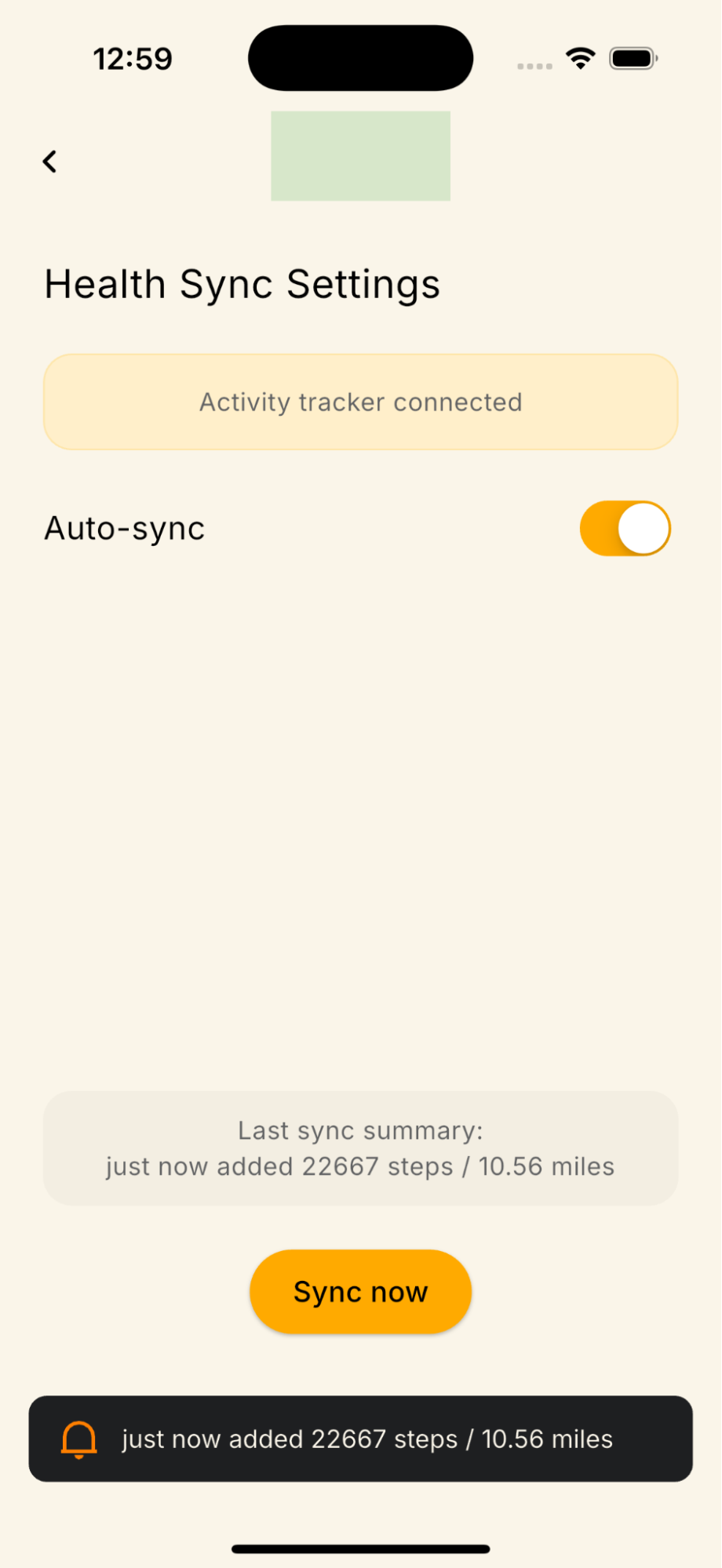
- Tap Connect Activity Tracker
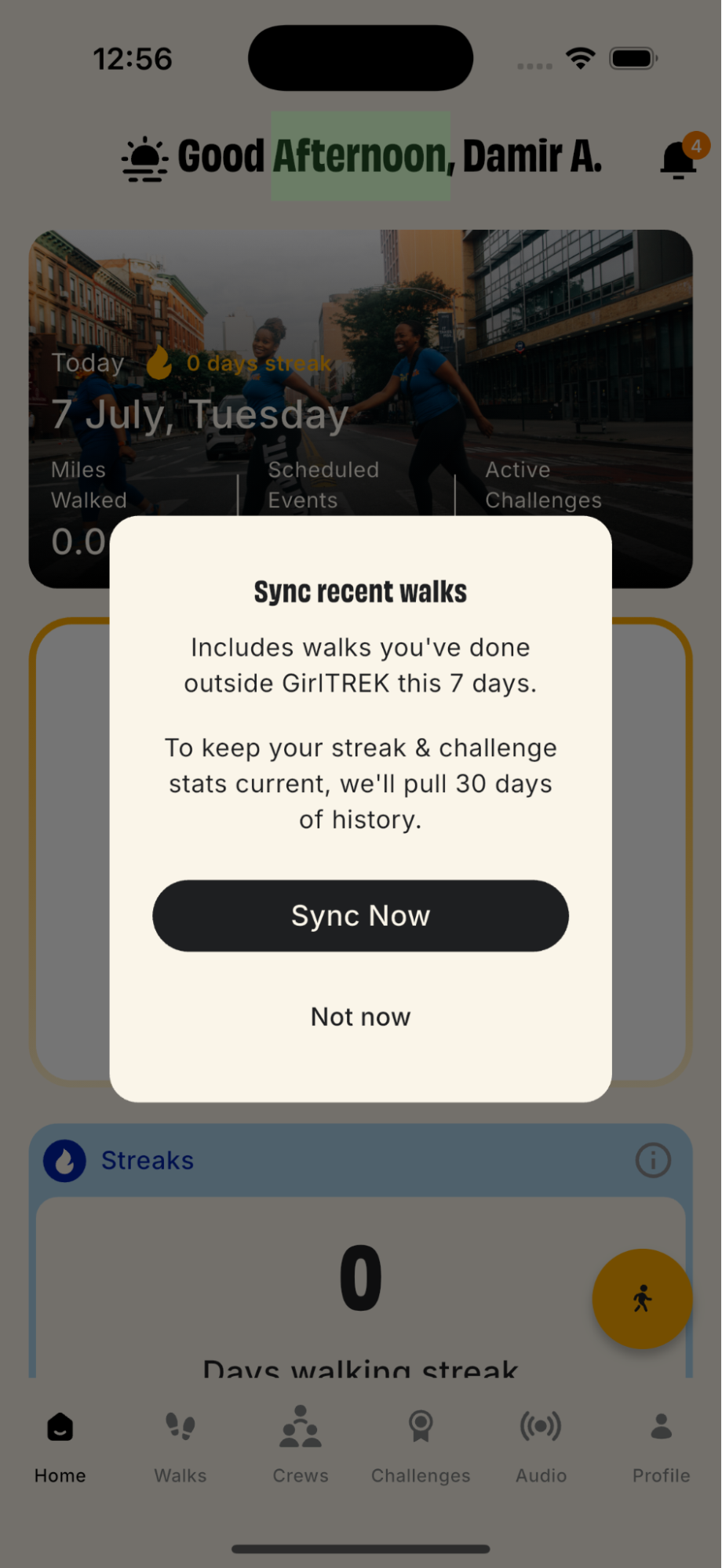
- Then tap “Sync Now”
That should pull in your activity. If anything doesn’t look right or you get stuck, just let us know—we’re here with you every step of the way.
Have steps or miles from another app that aren't showing up in your GirlTREK totals? This article explains what Sync Activity does, how it works with Apple Health and Health Connect, and exactly what to include if you need to reach out to our team for help.
- Why Sync Activity Exists
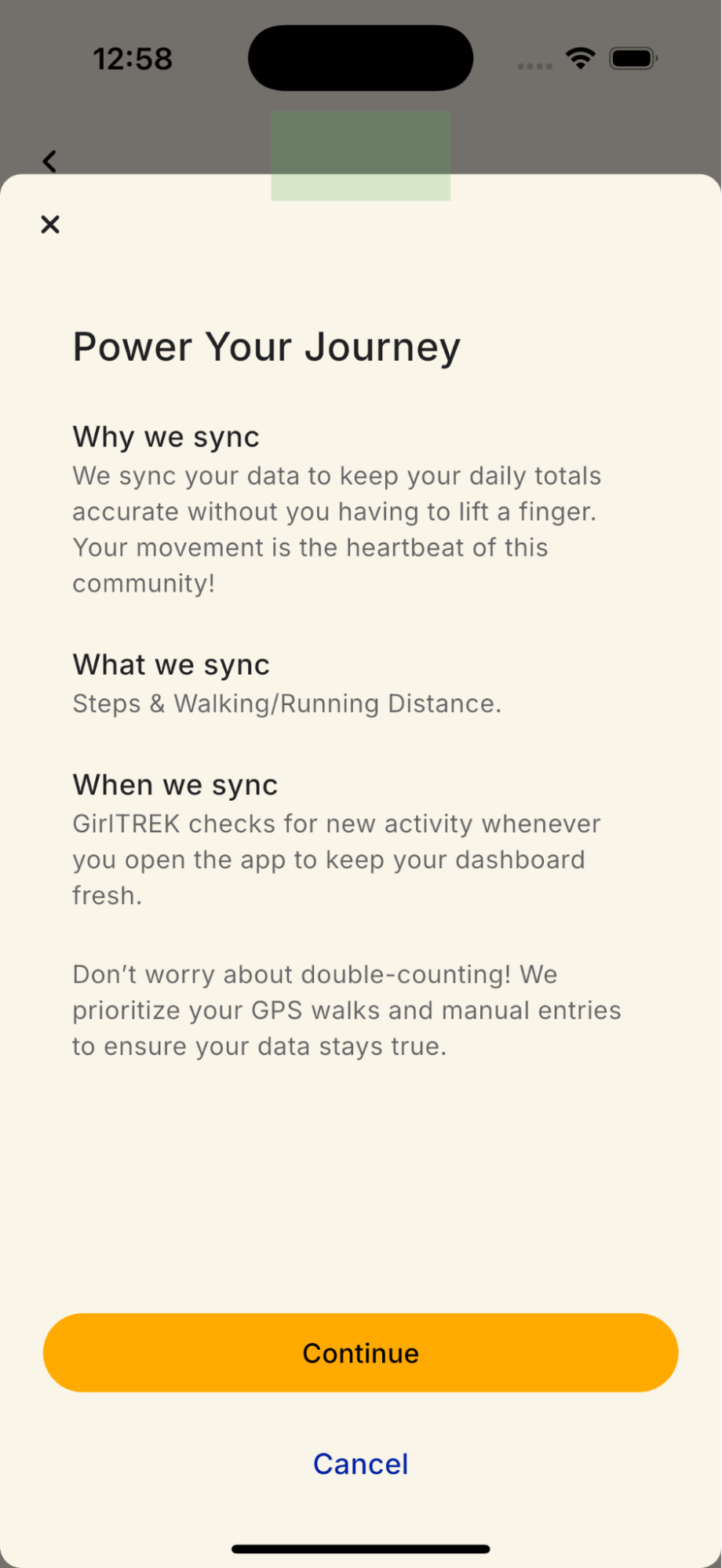
We know your movement doesn't only happen inside the GirlTREK app. Maybe you tracked a walk with your Apple Watch, logged a hike on another fitness app, or your phone counted your steps in the background while you ran errands. Sync Activity makes sure that effort still counts.
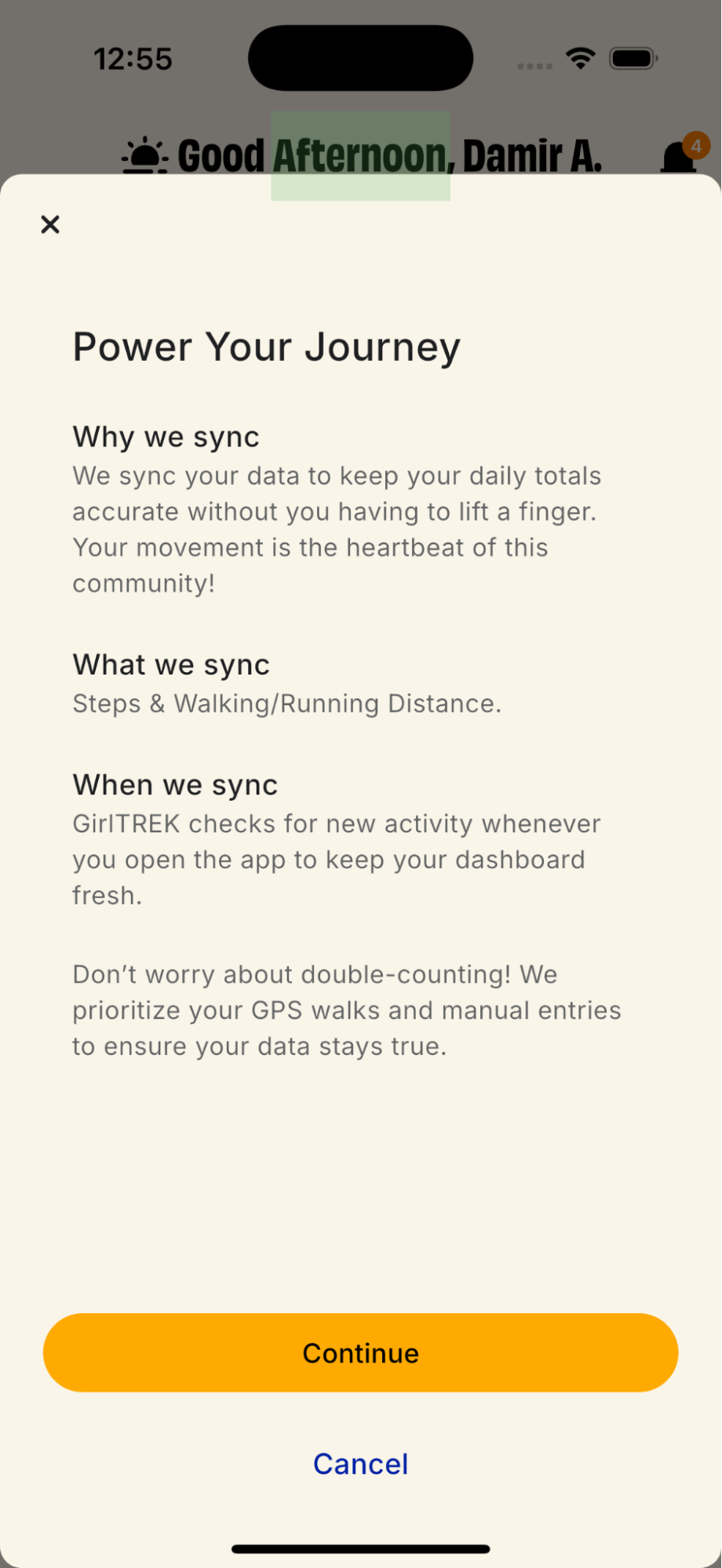
Instead of asking you to manually re-enter every walk, run, or workout, Sync Activity automatically pulls in activity data you've already recorded elsewhere and consolidates it into your GirlTREK totals. The goal is simple: wherever you moved, your progress should show up in one place — your GirlTREK dashboard, streaks, and challenges.
To keep things accurate, GirlTREK also automatically prevents double-counting. If you completed a GPS-tracked walk in the app or logged an activity manually, we prioritize that record and won't add duplicate steps or distance from a synced source for the same time window.
- Understanding Health Connect & Apple Health
Sync Activity doesn't connect directly to every fitness app out there — instead, we connect to a single "hub" on your phone that other apps already report to:
Android: Health Connect, Google's on-device platform for sharing health and fitness data between apps.
iOS: Apple Health, Apple's built-in health and fitness data platform.
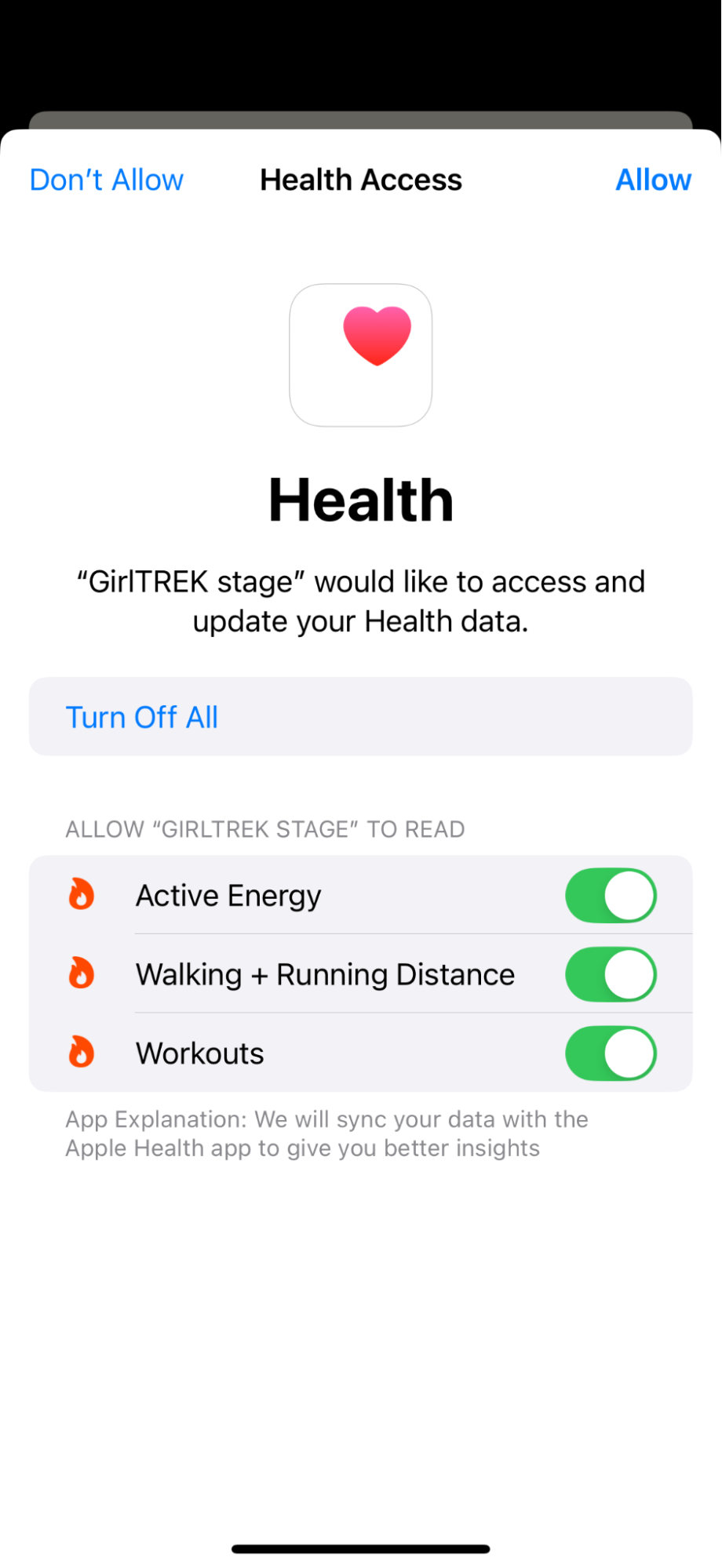
When you connect your activity tracker in GirlTREK, we ask Health Connect or Apple Health for permission to read your steps and walking/running distance. Any app that already writes that data to Health Connect or Apple Health — your smartwatch, a running app, a fitness tracker, etc. — becomes a source GirlTREK can pull from, without you having to connect each one individually.
Please note our boundaries of responsibility:
GirlTREK reads the data that Health Connect and Apple Health make available to us — we do not control how, when, or how accurately third-party apps and devices record and report that data. This means:
We are not responsible for the data quality, latency, or accuracy of activity data written by third-party apps or wearables into Health Connect or Apple Health. If your smartwatch undercounts your steps, or a fitness app takes a while to write your run to Health Connect/Apple Health, that data delay or discrepancy originates outside of GirlTREK.
We cannot troubleshoot third-party app settings. If you're having trouble getting a specific app or device to record activity, grant permissions, or write data into Health Connect or Apple Health in the first place, that setup lives entirely outside GirlTREK. Please refer to that app's or device's official support documentation and troubleshooting steps.
Once activity data reliably appears inside Health Connect (Android) or Apple Health (iOS), GirlTREK will be able to sync it. If it isn't appearing there, it isn't yet something we can pull from — the fix starts at the source app.
- How to Connect a Health API
First Launch:
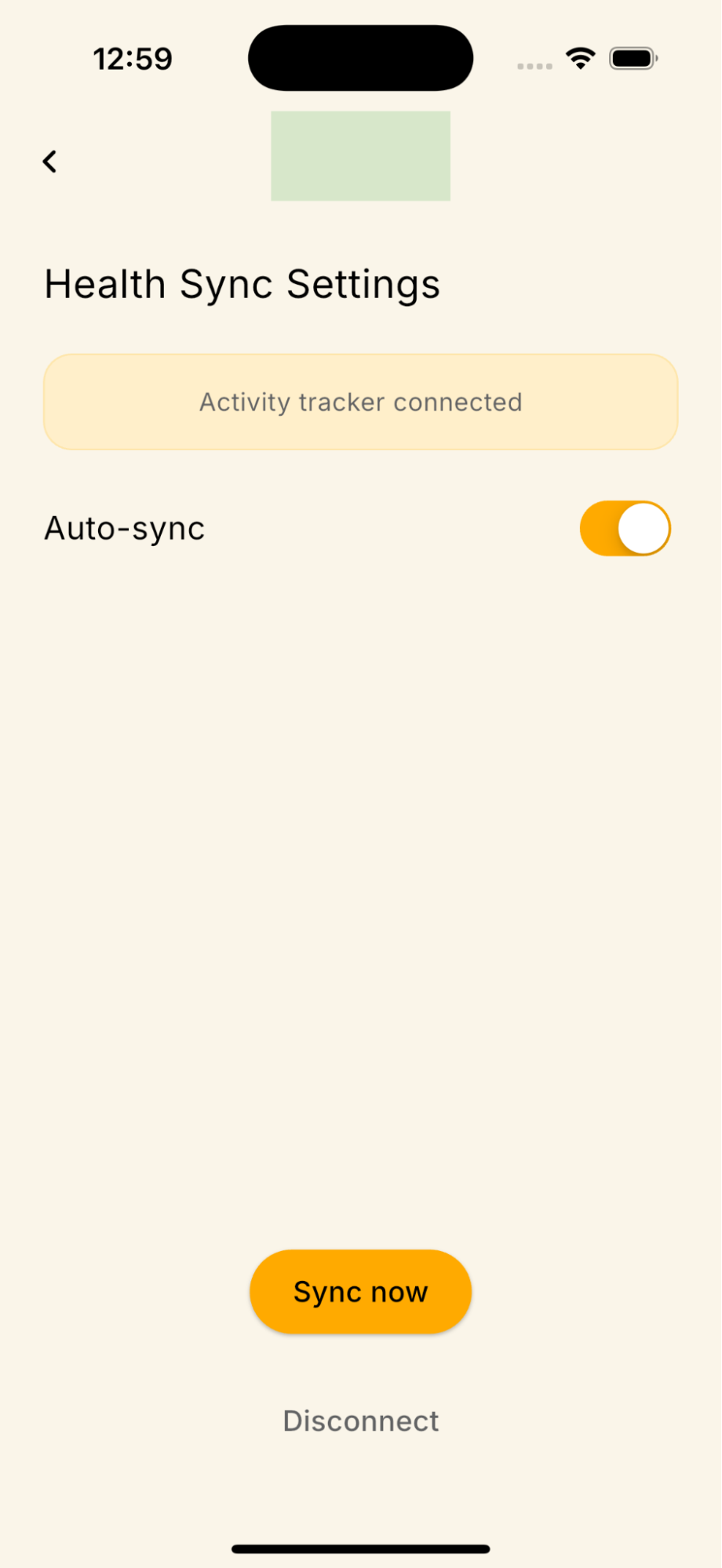
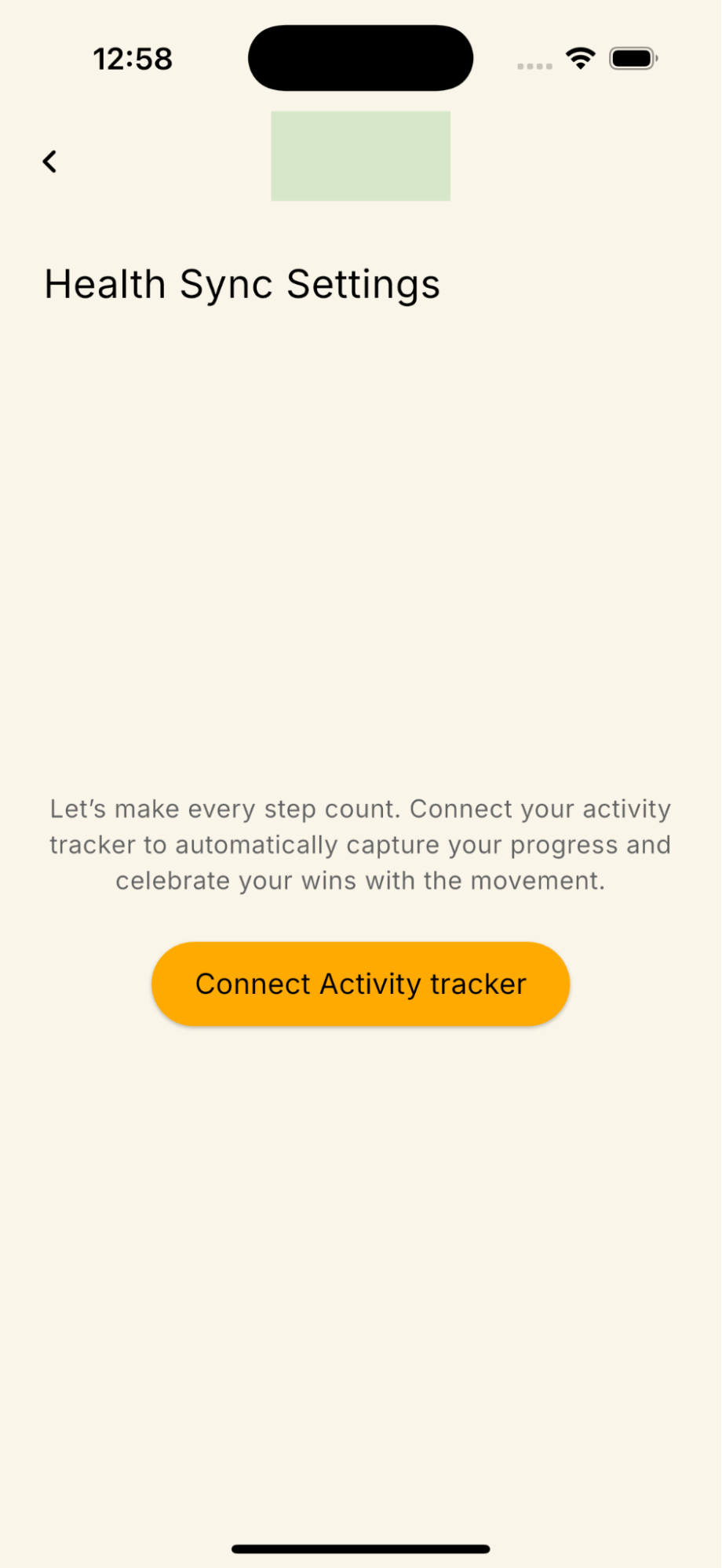
Connect from settings
- How to Submit a Support Request (Sync Issues)
If you've confirmed your activity is showing up correctly in Health Connect or Apple Health, but it still isn't reflected in your GirlTREK totals after tapping Sync Now, we're happy to investigate. To help our team resolve your issue as quickly as possible, please include the following when you contact us:
- Required: A screenshot of the activity inside the native Health Connect app (Android) or Apple Health app (iOS). This screenshot should clearly show:
- The activity type (e.g., steps, walking/running distance)
- The date and time it was recorded
- The amount recorded (steps or distance)
Why we ask for this: Our engineering team can only see what reaches GirlTREK's servers — we can't see what's happening inside Health Connect or Apple Health on your device. A screenshot of the activity as it appears natively lets us confirm the data actually exists at the system level before we start investigating whether the sync itself failed. Without it, we cannot distinguish between "the data never reached Health Connect/Apple Health" (a third-party app issue) and "the data is there but GirlTREK failed to sync it" (an issue on our end) — which significantly slows down troubleshooting.
How to submit your request:
Open Health Connect (Android) or Apple Health (iOS) and locate the activity in question.
Take a screenshot showing the activity type, date/time, and amount.
In the GirlTREK app, go to Profile → Get Support to open a support request.
Briefly describe the issue (e.g., "Steps from [app name] on [date] aren't syncing to GirlTREK").
Attach your screenshot(s) before submitting.
Requests submitted without a screenshot of the activity in the native Health Connect or Apple Health app may take longer to resolve, as our team will need to follow up to request this information before investigation can begin.
Still have questions? Reach out to us anytime from Profile → Get Support within the app.
Known Issues
- Samsung Health Sync Restrictions (Android)
We are currently tracking an issue specific to Samsung Health users on Android where daily step counts sync normally, but detailed exercises or manual walks (activities) do not appear in Health Connect or GirlTREK. This is typically caused by a known bug in Samsung Health version 7.0+ or restricted background battery permissions inside the One UI system settings.
If your steps are updating but your walks are missing, please try the following steps:
- Long-press the Samsung Health icon, tap the "i" (App Info) icon, go to Battery, and change the setting to "Unrestricted".
- Open Health Connect permissions, select Samsung Health, and ensure that "Exercises", "Distance", and "Active Energy" are all explicitly enabled under the "Allowed to write" section.
- If the issue persists, you can temporarily use a third-party bridge app like Health Sync from the Google Play Store to push your exercises directly to Health Connect until Samsung releases an official software patch
- Strava Synchronization Disconnect (Android)
We are tracking an issue where workouts logged in Strava (such as walks or runs) do not appear in GirlTREK, even though your Strava account is active. This happens because Strava requires a manual, one-time setup to authorize data sharing with Android's Health Connect hub. If this integration is not configured or if permissions are partially disabled, Strava will not share your workout data, meaning GirlTREK cannot pull it.
To resolve this and ensure your Strava activities sync seamlessly:
- Open the Strava app on your Android device and navigate to your Settings (gear icon).
- Tap on Applications, Services, and Devices, then select Health Connect.
- Follow the on-screen prompts to connect and ensure you grant full permissions for Strava to "Write" data (specifically Exercises, Distance, and Active Energy) to Health Connect.
For a complete step-by-step walkthrough and troubleshooting tips, please refer to the Strava Support Guide: Health Connect and Strava.
- Strava Synchronization Disconnect (iOS / Apple Health)
We are tracking a scenario where runs, walks, or rides recorded via Strava or Apple Watch do not appear in your GirlTREK totals on iOS. This happens when the bridge between Strava and Apple Health is either not configured or has missing permissions. Specifically, if the "Workouts" category is disabled within Apple Health's privacy controls, Strava is strictly blocked from sharing any physical activity data, meaning GirlTREK cannot access it.
To resolve this and make sure your iOS activities transfer properly:
- Open the Strava app on your iPhone, go to your You tab, and tap the Settings (gear icon) in the upper right corner.
- Select Manage Apps and Devices -> tap Health -> and select the "+" (plus sign) to tap Connect.
- When the iOS Health Access screen slides up, ensure you toggle on permissions for Strava to "Write" data (especially Workouts, Walking/Running Distance, and Active Energy).
For the official, step-by-step setup walkthrough and advanced troubleshooting, please refer to the Strava Support Guide: Health App and Strava.